---
title: About Story Creatives, Features and Specifications
description: Discover the step-by-step process of creating captivating story creatives using the Nova UI, along with its specifications and features. Story Creatives can't be imported via Social Import
---
[Skip to content](https://help.novastudio.ai/story-creatives-tutorial#main-content)
[Ad Creative Build Request](https://help.novastudio.ai/kb-tickets/new?hsLang=en)
[](https://createwithnova.wiki/)
- [Login](https://create.novastudio.ai)
Open main navigation
Close main navigation
- [Login](https://create.novastudio.ai)
- [Ad Creative Build Request](https://help.novastudio.ai/kb-tickets/new)
- [Login](https://createwithnova.io/)
[Login](https://createwithnova.io/)
How can we help?
- There are no suggestions because the search field is empty.
1. [Nova Wiki](https://help.novastudio.ai/?hsLang=en)
2. [Display](https://help.novastudio.ai/display?hsLang=en)
3. [Ad Formats & Capabilities](https://help.novastudio.ai/display?hsLang=en#ad-formats-capabilities)
# About Story Creatives, Features and Specifications
Discover the step-by-step process of creating captivating story creatives using the Nova UI, along with its specifications and features.
#### [Creating a Story Creative: Step-by-Step Procedure](https://help.novastudio.ai/story-creatives-tutorial#procedure-to-create)
#### [How to Convert Another Format to Story Format Using Any Public Post](https://help.novastudio.ai/story-creatives-tutorial#convert-format)
#### [Technical Specifications](https://help.novastudio.ai/story-creatives-tutorial#specs)
#### [Key Features of Story Creatives](https://help.novastudio.ai/story-creatives-tutorial#features)
#### [Reporting](https://help.novastudio.ai/story-creatives-tutorial#reporting)
#### [Demos](https://help.novastudio.ai/story-creatives-tutorial#demos)
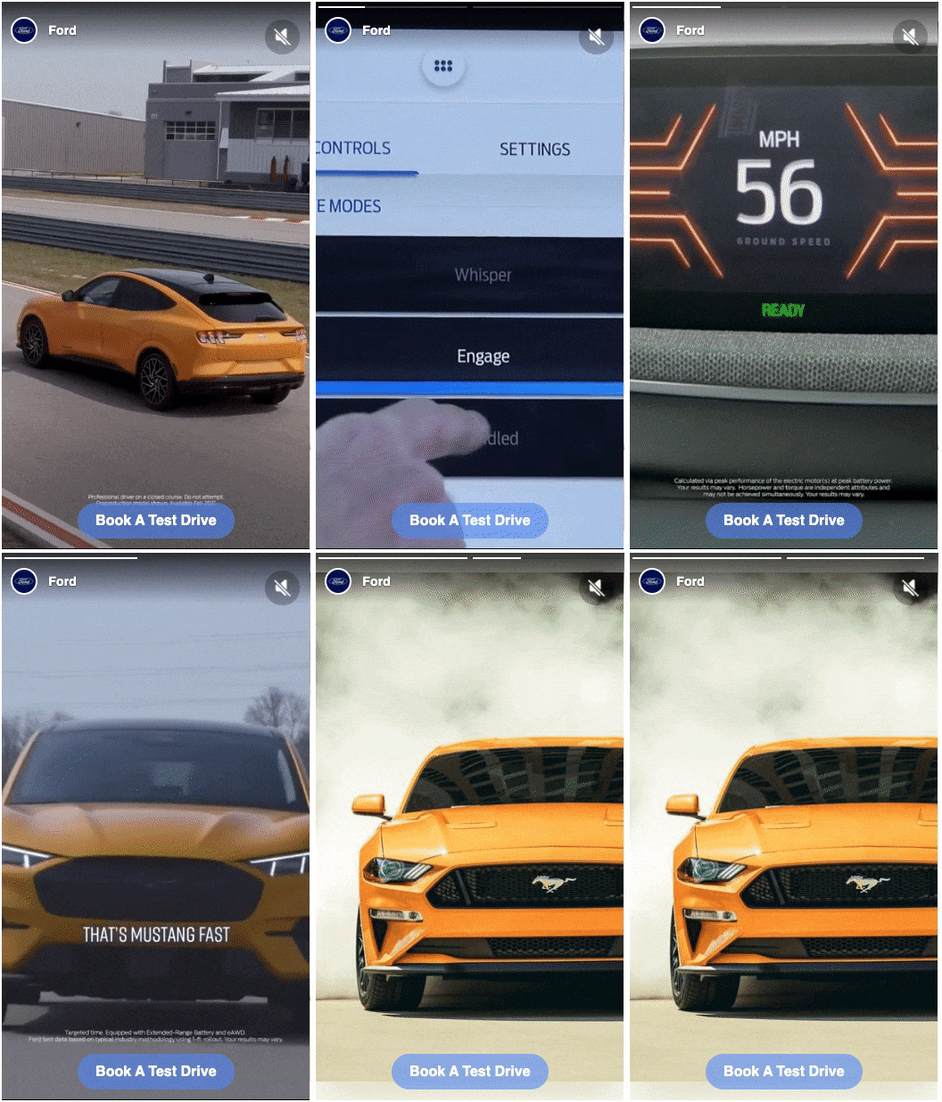 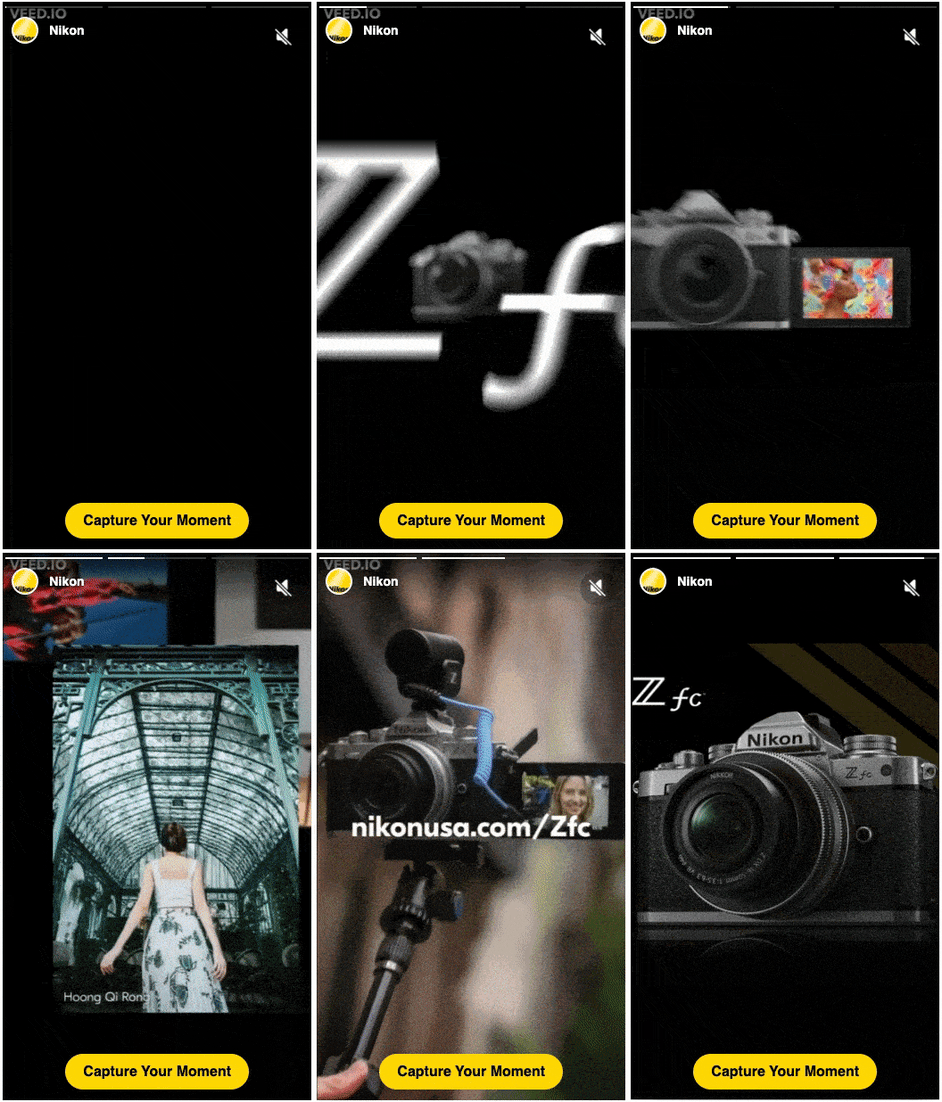
Story Creatives can't be imported via Social Import (Auto-fill) and have to be [created manually](https://createwithnova.wiki/nova-manualasset)
### Creating a Story Creative: Step-by-Step Procedure
1. In Nova Dashboard under any campaign, Click **Add Creative**
-png.png)
2. Click **Add Display Creative-png.png)**
3. Click **Create Social Display Ad Manually-png.png)**
4. Add **Creative Name-png.png)**
5. Select **Format Type** to **Story-png.png)**
6. Insert a **Brand Name** and **Logo-png.png)**
7. Upload the desired **Media Assets-png.png)**
8. *Optional:* Add a **Headline** and **Description-png.png)**
9. Add a **Landing Page URL** and update the **CTA Button** text, font color, and transparency-png.png)
10. Update **Story Settings-png.png)**
11. *Optional:* Update the **Tracking** information-png.png)
### How to Convert Another Format to Story Format Using Any Public Post
Watch the video below to learn how to convert an existing social post into a story format.
1. In Nova Dashboard under any campaign, Click **Add Creative**
-png.png)
2. Click **Add Display Creative
-png.png)**
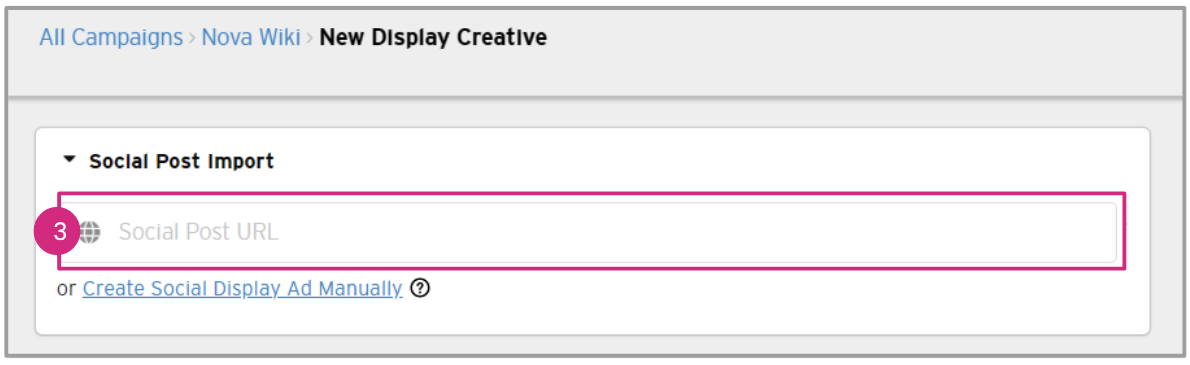
3. Paste the **Social Post URL**and allow to scrape
****
4. Add a **Creative Name
-png.png)**
5. Change **Format Type** to **Story
-png.png)**
6. Add a **Landing Page URL** and update the **CTA Button** text, font color, and transparency
-png.png)
### Technical Specifications:
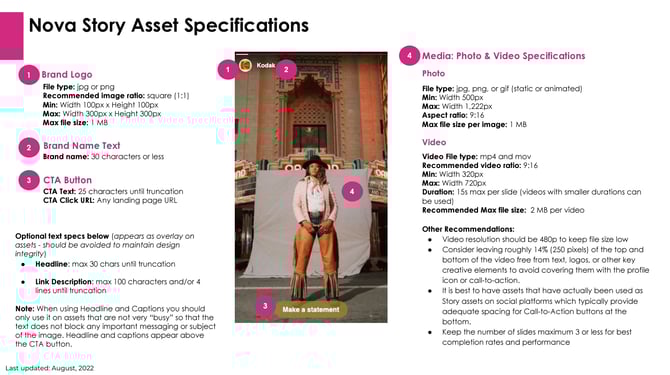
Here are the technical specifications for creating captivating story creatives using the Nova UI:
Download One Pager Story Creative Technical Specs [Here](https://help.novastudio.ai/hubfs/Nova%20Story%20Asset%20Specifications%20-%20one%20page.pdf?hsLang=en)
### Asset Specifications
1. **Image**
1. Supported file type: jpg, png, or gif (static or animated)
2. Width: min 400px, max 1,222px
3. Recommended Aspect ratio 9:16
4. Recommended file size: Max 1 MB per image
5. Image assets will have a duration of 60s per slide by default
2. **Video asset**
1. Supported file type: mp4, mov
2. Recommended video ratio: 9:16
3. Width: min 320px, max 720px
4. Recommended file size: Max 2 MB per video
5. The slide duration will be the whole duration of the video asset
3. 1:1 brand logo at minimum 100px width. File type: .jpg and .png
4. Brand name text (less than 30 characters)
5. CTA button text (less than 25 characters)
6. **Recommendations:**
1. Video resolution should be 480 px to keep file size low
2. Consider leaving roughly 14% (250 pixels) of the top and bottom of the video free from text, logos, or other key creative elements to avoid covering them with the profile icon or call-to-action.
3. When using Headline and Captions you should only use it on assets that are not very “busy” so that the text does not block any important messaging or subject of the image. Headline and captions appear above the CTA button.
4. It is best to have assets that have actually been used as Story assets on social platforms which typically provide adequate spacing for Call-to-Action buttons at the bottom.
5. Keep the number of slides maximum 3 or less for best completion rates and
performance
UX for Stories with Several video slides: Chrome browsers block ads that are larger than 4MB in size due to [Heavy Ads Intervention](https://blog.chromium.org/2020/05/resource-heavy-ads-in-chrome.html). So, for stories with several video slides, a “Keep Watching” overlay will appear on Chrome if the ads reach the bandwidth limit that might risk “off-loading” the ads. This overlay will not appear if the combined size is less than 3MB or if the user interacts with the ad in any way, for example, taps on the ad to go to the next slide or mutes/unmutes the ad etc. Once the user interacts with the ad the Story unit will auto-progress and load without “Keep Watching” appearing.
### Key Features of Story Creatives:
1. **User Experience:**
1. Tap anywhere to go to the next scene
2. Tap on the left of the current scene to go back to the previous scene
3. Tap on the last scene to go to the CTA destination
4. Tap and hold to stop progress or pause story
5. For Desktop left click and keep the mouse button pressed, to pause
6. CTA button Clicks out to destination URL on tap/click
7. Mute/Unmute feature for Video that has Audio
2. A maximum of 10 slides can be added per story (we recommend adding a max 5 slides)
3. Each slide can have its own destination URL
4. User can also select to give ALL slides the same destination URL
5. Duration of each slide depends on the asset type used. If an image asset is used the default duration is 5sec per slide while for a video asset the slide duration will be the complete duration of the video asset.
6. **Completely customizable CTA button**. Configurable options for:
1. CTA Text
2. Font color
3. Button Background color
4. Button Transparency
7. **Customizable Optional Headline and Caption area**. Configurable options for:
1. Headline text (max 30 characters)
2. Caption/Description text (max 100 characters - 4 lines)
3. Font color of the Headline and Caption text can be changed
4. Background color of text area can be changed
5. Transparency of background can be changed
8. **Story settings:**
1. Story Progress: Allows control over the progress of the story
- Auto-progress Scenes toggle controls how the scenes within the story
progress forward.
- **ON:** When this toggle is ON each scene within the story unit will
automatically slide to the next scene
- **OFF:** When this toggle is OFF the progress will stop at the end of
each scene and the user will need to tap to slide to the next scene
2. **Loop Options:** Controls what happens when the entire story completes a single run. Note that this is only applicable when Auto-progress scenes toggle is ON for Story Progress.
1. Loop last scene: The last scene will loop when the story completes
2. Start from first scene: The whole story unit (all scenes) will loop and
restart from the first scene
9. As with Carousels, users can add 1 Impression tracker per story so that Impression
count is consistent with GAM impressions.
10. As with Carousels, users may add click trackers per slide by adding the click tracker in the Landing Page URL field. This will track clicks on individual slides and the total click numbers will be different at client end compared to GAM because GAM only tracks 1 click per impression of the whole story. Users may also choose to use 1 click tracker for the whole story by adding it to the Click tracker field. In that case the total click numbers will match closely (given a 5% discrepancy max) with GAM click numbers because that will also track 1 click per impression.
11. Fixed sized rendering is also supported for ad slots that do not allow resize.
12. Any standard image post or Image only Carousel post can be converted to Stories Unit. The example illustrated here:
### Reporting
Please refer to the [How do I download a campaign report](https://createwithnova.wiki/nova-campaignreporting) article
Here is a [Sample Report](https://docs.google.com/spreadsheets/d/1CwvSWkRkJvJj_7b5kLQA0OaY4U4ENFi0/edit?usp=sharing&ouid=100184910880334372549&rtpof=true&sd=true). The sheet labelled Carousel and Carousel (Daily) hosts the Story specific reports.
Definitions of the metrics can be found [here.](https://docs.google.com/spreadsheets/d/1CwvSWkRkJvJj_7b5kLQA0OaY4U4ENFi0/edit?gid=241949803#gid=241949803)
### Demos
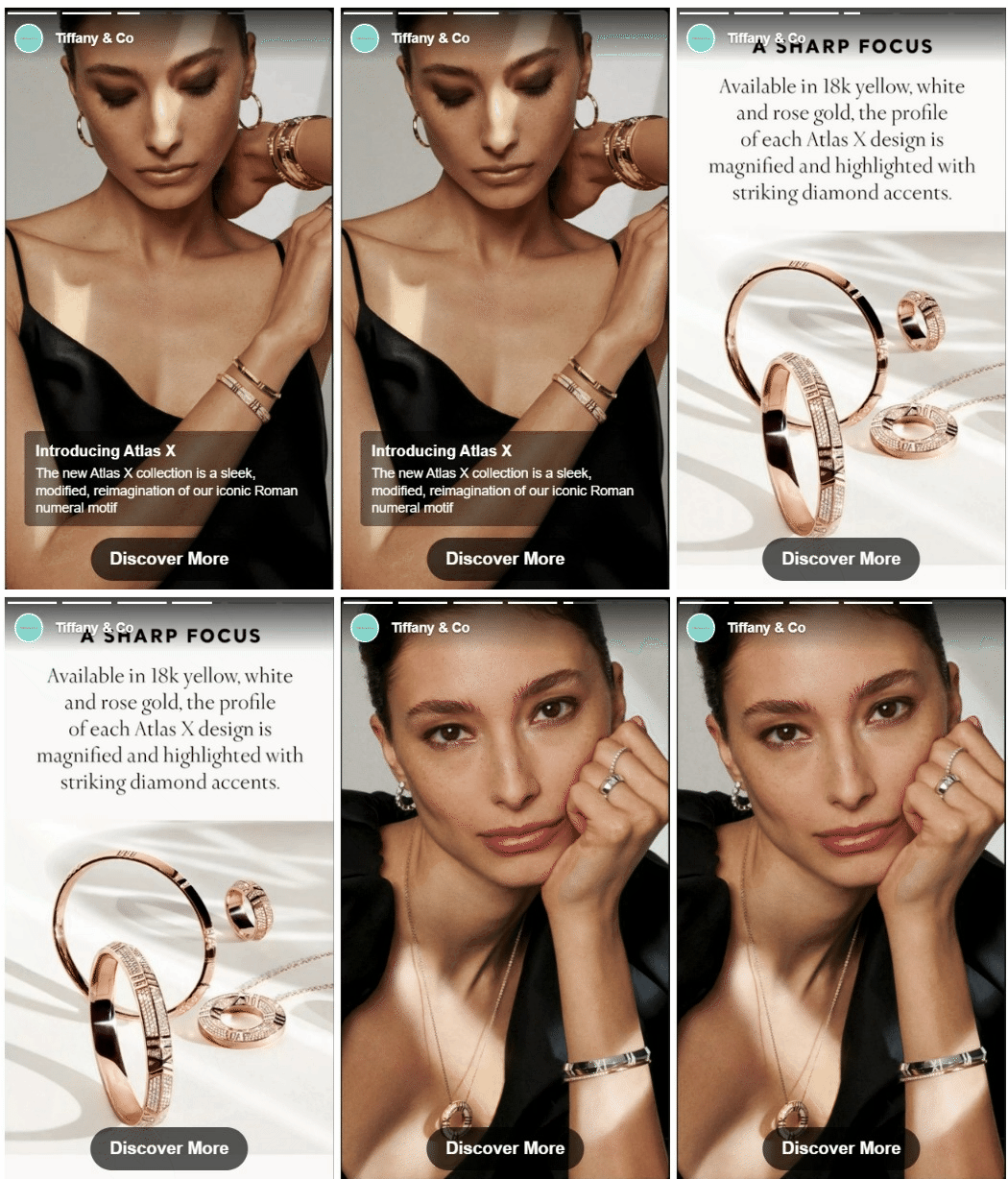
1. **Tiffany & Co**.: Demo showing caption and headline
2. **Heinz:** Demo showing different colored CTA feature
-gif.gif)
3. **BMW:** Demo with 1 video that has auto-play
-gif.gif)
4. **Ebay:** Demo with two video
-gif.gif)
5. **Expedia:** Demo with 3 video slides
-gif.gif)
6. **7-Eleven:** Demo with 3 photos
-gif.gif)
7. **Kodak:** Demo with 3 photos
-gif.gif)
8. **Hollister Jeans:** Demo with 3 photos and caption
-gif.gif)
9. **Nikon:** Demo with 30 second video cut into 2 slides:
-gif.gif)
10. **Branded Story Demo**
-gif.gif)
To learn more about stories, check out our [website](https://www.createwithnova.com/stories-specs)
Having any questions about story creatives? Send us your request to [support@createwithnova.com](mailto:support@createwithnova.com)
- [User Management](https://help.novastudio.ai/user-management?hsLang=en)
- [Display](https://help.novastudio.ai/display?hsLang=en#main-content)
- [Setup & Basics](https://help.novastudio.ai/display?hsLang=en#setup-basics)
- [Create Ad](https://help.novastudio.ai/display?hsLang=en#create-ad)
- [Ad Formats & Capabilities](https://help.novastudio.ai/display?hsLang=en#ad-formats-capabilities)
- [Features](https://help.novastudio.ai/display?hsLang=en#features)
- [Import & Download](https://help.novastudio.ai/display?hsLang=en#import-download)
- [Troubleshoot](https://help.novastudio.ai/display?hsLang=en#troubleshoot)
- [VAST Video](https://help.novastudio.ai/vast-video?hsLang=en#main-content)
- [Setup & Basics](https://help.novastudio.ai/vast-video?hsLang=en#setup-basics)
- [Ad Formats](https://help.novastudio.ai/vast-video?hsLang=en#ad-formats)
- [Features](https://help.novastudio.ai/vast-video?hsLang=en#features)
- [Activation](https://help.novastudio.ai/vast-video?hsLang=en#activation)
- [Trackers](https://help.novastudio.ai/trackers?hsLang=en#main-content)
- [Add & Manage](https://help.novastudio.ai/trackers?hsLang=en#add-manage)
- [Guidelines](https://help.novastudio.ai/trackers?hsLang=en#guidelines)
- [Reporting](https://help.novastudio.ai/reporting?hsLang=en#main-content)
- [Access & Export](https://help.novastudio.ai/reporting?hsLang=en#access-export)
- [Metrics & Discrepancies](https://help.novastudio.ai/reporting?hsLang=en#metrics-discrepancies)
- [Trafficking Guidelines](https://help.novastudio.ai/trafficking-guidelines?hsLang=en)
- [Best Practices](https://help.novastudio.ai/best-practices?hsLang=en)
- [Native Ads](https://help.novastudio.ai/native-ads?hsLang=en)
- [Case Studies](https://help.novastudio.ai/case-studies?hsLang=en)
[](http://www.novastudio.ai?hsLang=en)
[support@novastudio.ai](mailto:support@createwithnova.com)
```
```
Copyright © 2026, Nova
```json
{
"@context" : "https://schema.org",
"@type" : "VideoObject",
"contentUrl" : "https://4934439.fs1.hubspotusercontent-na1.net/hubfs/4934439/Story%20creatives%20in%20Nova%20FINAL.mp4",
"dateModified" : "2023-06-30T23:19:31.089Z",
"duration" : "PT2M2S",
"height" : 720,
"name" : "Story creatives in Nova FINAL",
"thumbnailUrl" : "https://4934439.fs1.hubspotusercontent-na1.net/hubfs/4934439/Story%20creatives%20in%20Nova%20FINAL.mp4/medium.jpg",
"uploadDate" : "2023-06-30T23:19:24.680Z",
"width" : 1280
}
```
```json
{
"@context" : "https://schema.org",
"@type" : "VideoObject",
"contentUrl" : "https://4934439.fs1.hubspotusercontent-na1.net/hubfs/4934439/Loom__How_to_Convert_a_Social_Post_into_a_Story_Creative_AdobeExpress.mp4",
"dateModified" : "2023-08-15T18:10:38.879Z",
"duration" : "PT2M15S",
"height" : 1032,
"name" : "Loom__How_to_Convert_a_Social_Post_into_a_Story_Creative_AdobeExpress",
"thumbnailUrl" : "https://4934439.fs1.hubspotusercontent-na1.net/hubfs/4934439/Loom__How_to_Convert_a_Social_Post_into_a_Story_Creative_AdobeExpress.mp4/medium.jpg",
"uploadDate" : "2023-08-15T18:10:30.607Z",
"width" : 1920
}
```