
We have added a new 'Planning Only' user role. This role allows users to access the Planning Studio while restricting them from accessing the Production Studio. This is helpful if you have team members, such as sales representatives, who only need to use the Planning Studio. You can set this up yourself, or the Nova Services team can do it for you.
Prerequisites
To assign this permission, you must be a Nova employee or have an Admin role for your team or organization.
How to Add the Role for a New User
Step 1: Open the Production Studio.
Step 2: Click on Settings in the bottom left pane.
Step 3: Click on User Management.
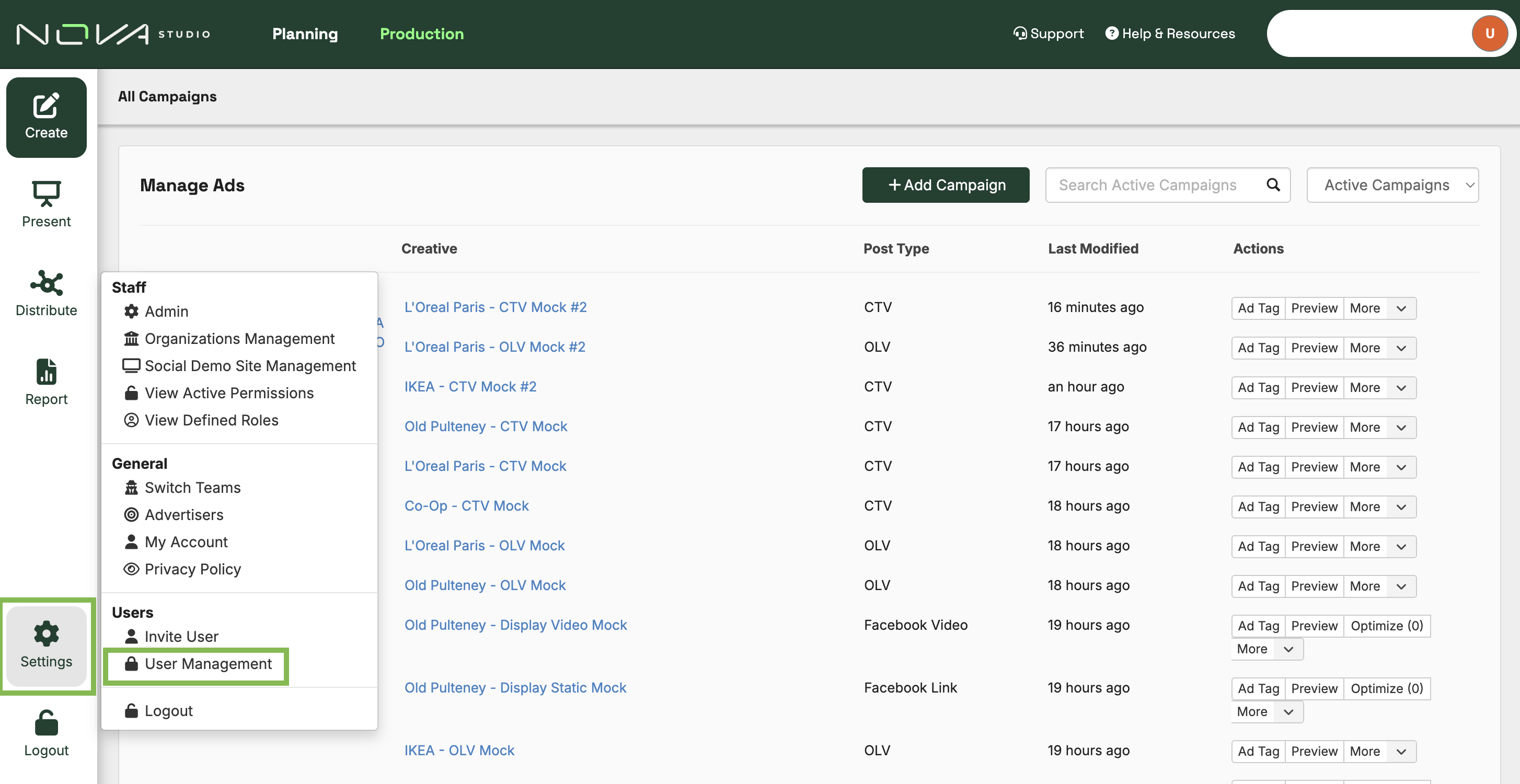
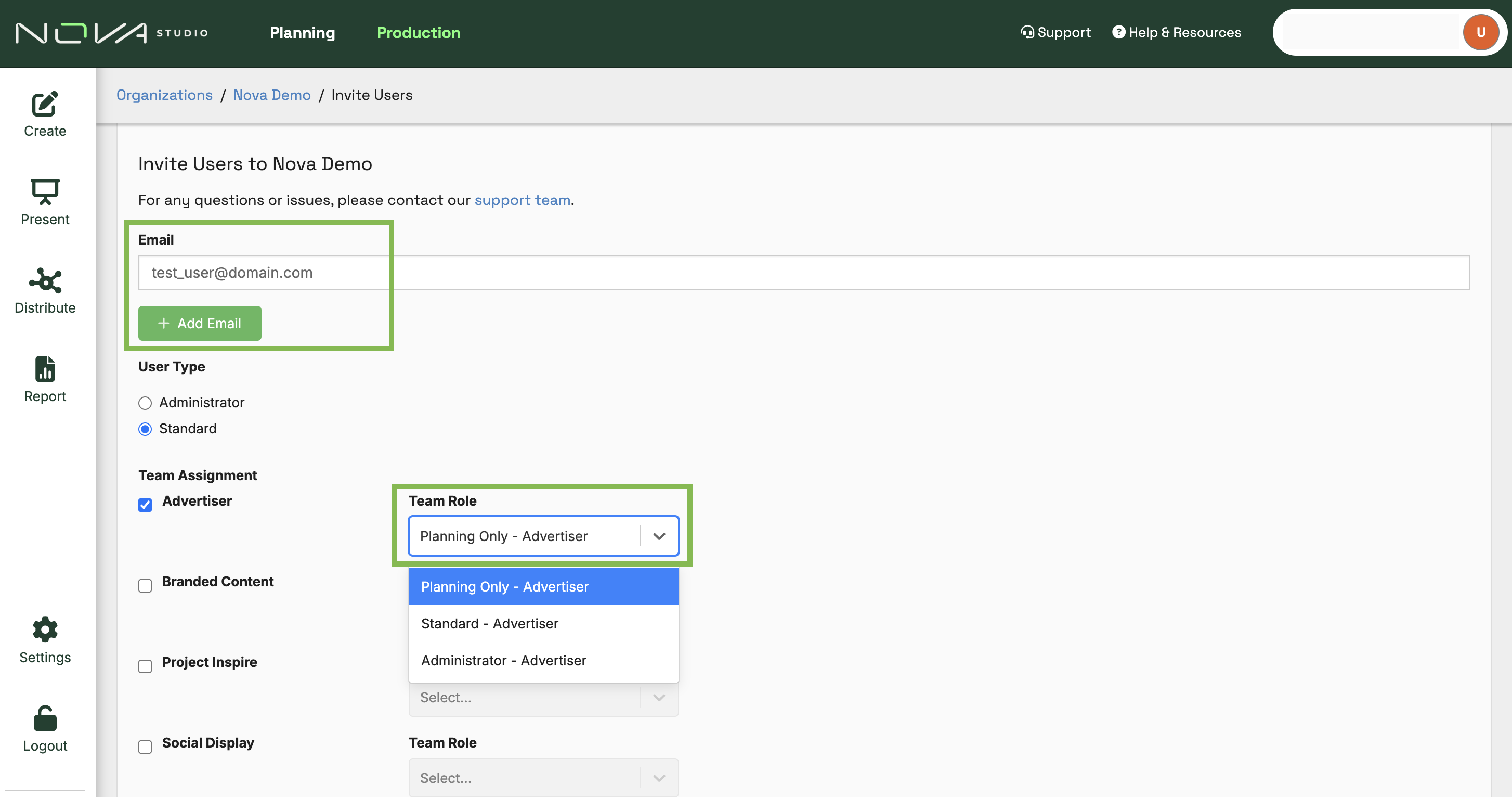
Step 4: Follow the standard process to add a new user.
Step 5: When you reach the team assignment section, select Planning Only from the role dropdown menu for each team you are adding them to.
How to Change the Role for an Existing User
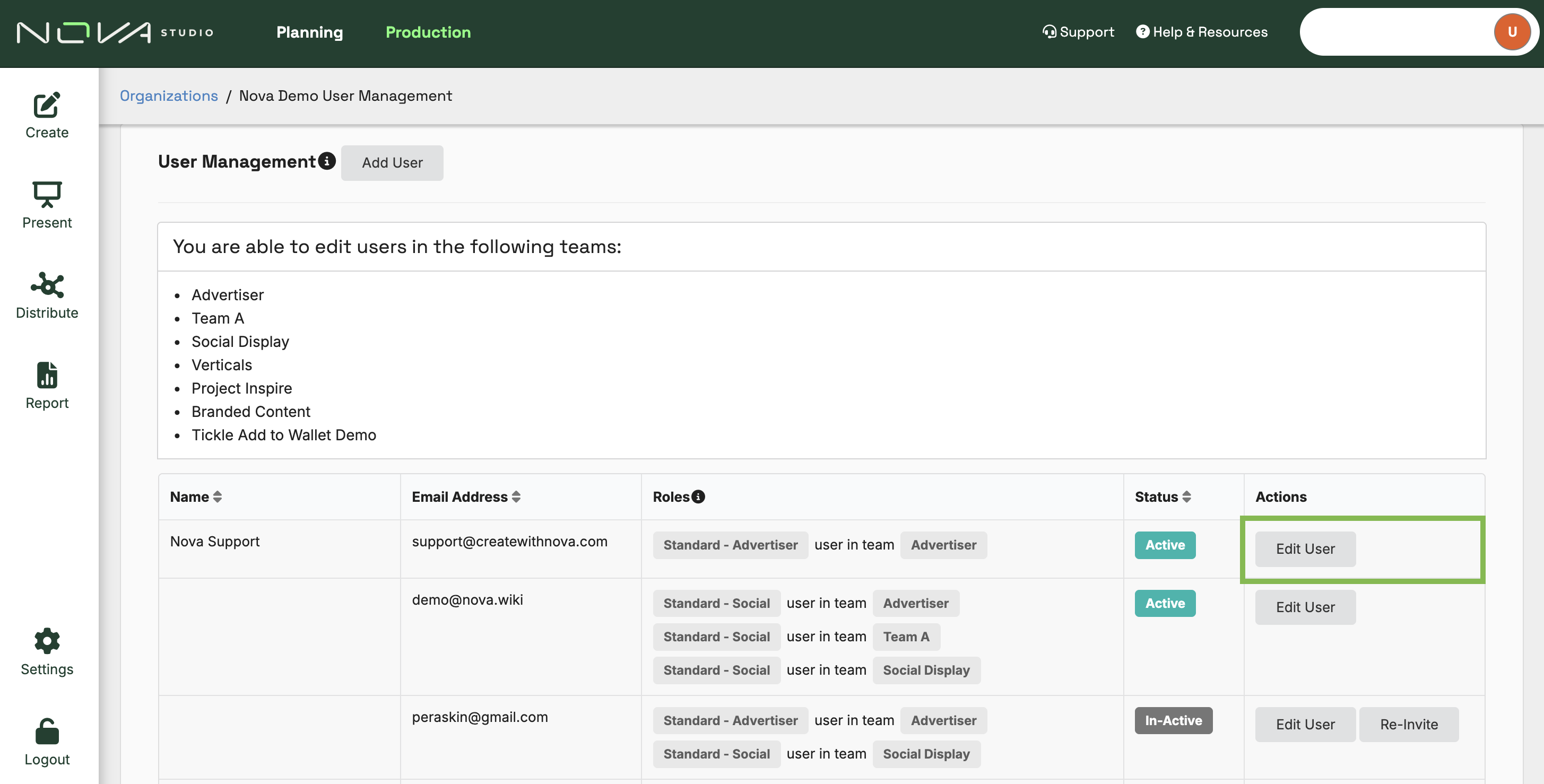
Step 1: Open the Production Studio, navigate to Settings, and click on User Management.
Step 2: Find the user's account in the list and click Edit User next to their name.
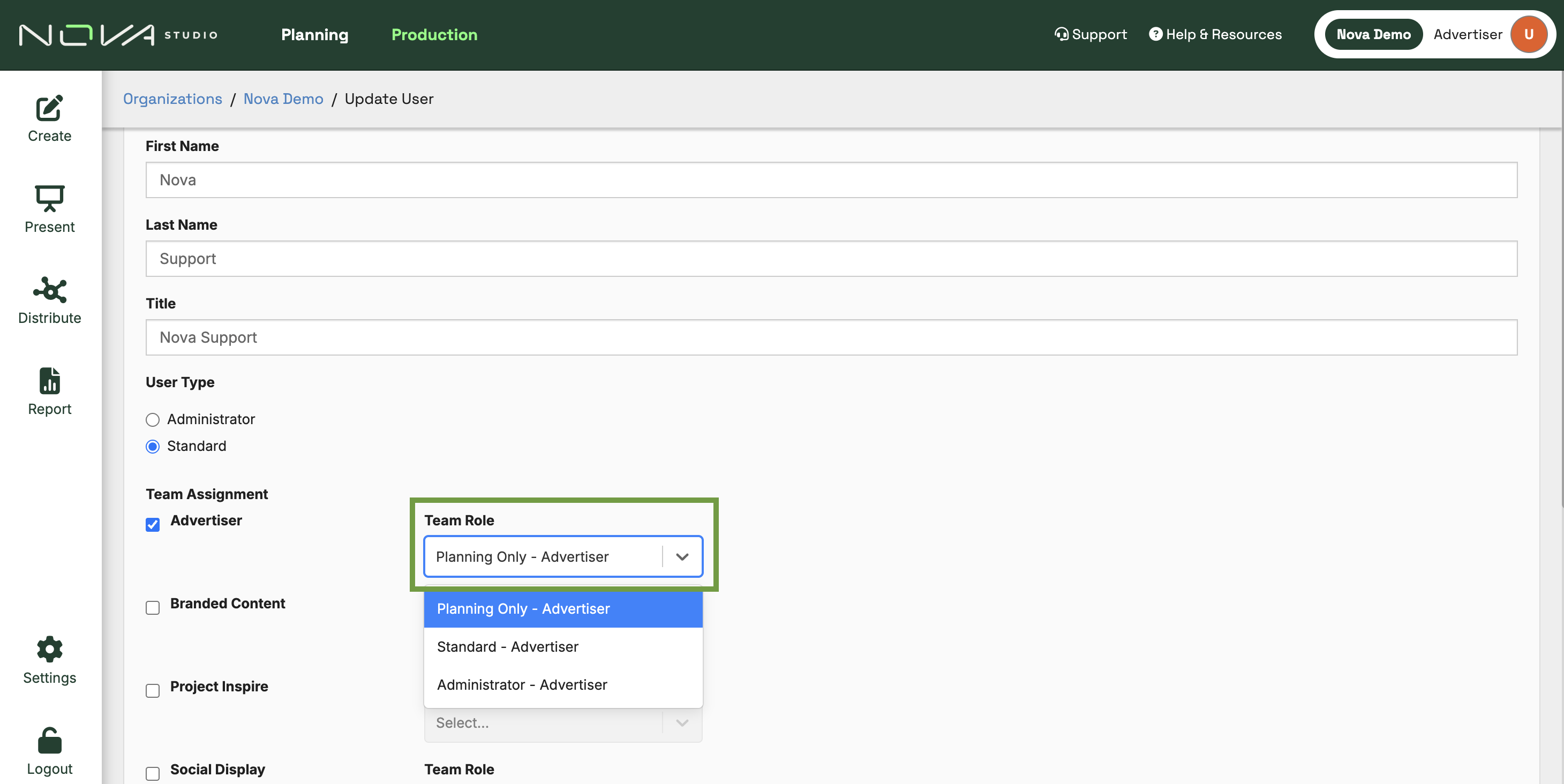
Step 3: Scroll down to the Team Assignment section.
Step 4: Click the Team Role dropdown menu and select the new Planning Only option for each assigned team.
Step 5: Save your changes.
Important Notes Regarding Team Types
There are three types of teams in Nova: Advertisers, Publishers/Social Display, and Branded Content.
Please note the following rules for Branded Content teams:
- The 'Planning Only' role is not available for Branded Content teams.
- Branded Content teams do not have access to the Planning Studio.
- Rule of Thumb: If a user should not have access to the Production Studio, do not add them to a Branded Content team.