---
title: How to Download Facebook Videos
description: Learn how to download Facebook videos
---
[Skip to content](https://help.novastudio.ai/download-facebook-videos#main-content)
[Ad Creative Build Request](https://help.novastudio.ai/kb-tickets/new?hsLang=en)
[](https://createwithnova.wiki/)
- [Login](https://create.novastudio.ai)
Open main navigation
Close main navigation
- [Login](https://create.novastudio.ai)
- [Ad Creative Build Request](https://help.novastudio.ai/kb-tickets/new)
- [Login](https://createwithnova.io/)
[Login](https://createwithnova.io/)
How can we help?
- There are no suggestions because the search field is empty.
1. [Nova Wiki](https://help.novastudio.ai/?hsLang=en)
2. [Display](https://help.novastudio.ai/display?hsLang=en)
3. [Import & Download](https://help.novastudio.ai/display?hsLang=en#import-download)
# How to Download Facebook Videos
## This article covers three ways to download a Facebook video for use in Nova Studio.
💡 Prefer a video walkthrough? Watch a 30-second video tutorial below.
---
### Option 1: download the file via third-party website (2 mins)
We recommend using a downloader tool via a third-party website. **This tutorial walks through how to download a Facebook video using [fdown.net](https://fdown.net/).**
1. Copy the Facebook URL of your desired video
1. *Having trouble finding the Facebook URL?* See our [How to Copy Social Post URLs](https://help.novastudio.ai/copy-social-post-urls?hsLang=en) article for guidance on finding the URL of your Facebook video.
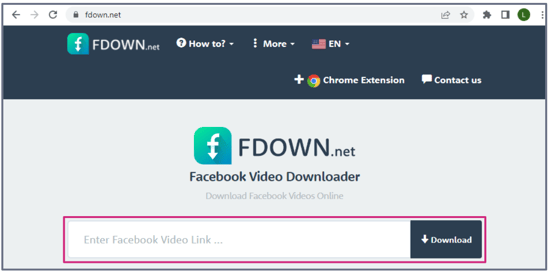
2. In a new browser tab, Navigate to [fdown.net](https://fdown.net/)
3. Paste the URL and click **Download**
### 
4. Close any ads which appear
5. Click **Download in HD Quality** button
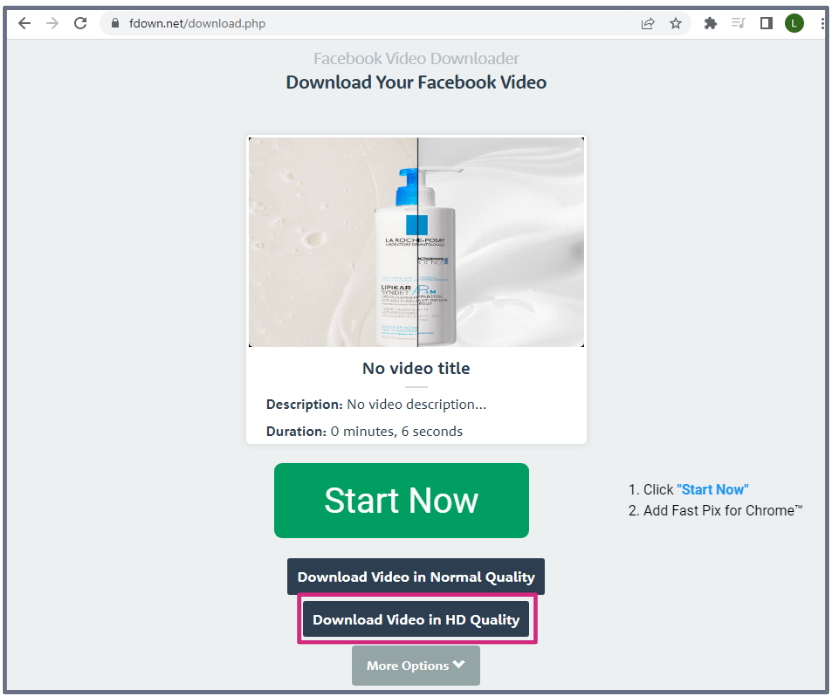
**Pro tip**: Ensure the URL is for the individual post and not the brand page
### Option 2: via the Inspect Window in Google Chrome (3 mins)
Learn more [here](https://www.youtube.com/watch?v=qRSquIrnVXs).
1. Right-click on the individual post page of the Facebook video and select **Inspect**
**-png-1.png)**
2. Toggle the mobile view setting to the desired device
-png.png)
3. Refresh the page
-png.png)
4. Press play on the video
-png.png)
5. Press "ctrl f" or (command f for mac) and type in "\
Copyright © 2026, Nova
```json
{
"@context" : "https://schema.org",
"@type" : "VideoObject",
"contentUrl" : "https://4934439.fs1.hubspotusercontent-na1.net/hubfs/4934439/download%20FB%20from%20third%20party%20FINAL.mp4",
"dateModified" : "2023-06-30T23:36:42.445Z",
"duration" : "PT30S",
"height" : 720,
"name" : "download FB from third party FINAL",
"thumbnailUrl" : "https://4934439.fs1.hubspotusercontent-na1.net/hubfs/4934439/download%20FB%20from%20third%20party%20FINAL.mp4/medium.jpg",
"uploadDate" : "2023-06-30T23:36:36.069Z",
"width" : 1280
}
```