---
title: How Do I Create a CTV/OLV (VAST) Creative with Social Import (Auto-Fill)?
description: Download the Info deck on how to create a CTV/OLV creative using Social Import (auto-fill) Here This article will explain the procedure to follow when creating a CTV/OLV (VAST) creative in the Nova pl
---
[Skip to content](https://help.novastudio.ai/ctv-olv-social-import#main-content)
[Ad Creative Build Request](https://help.novastudio.ai/kb-tickets/new?hsLang=en)
[](https://createwithnova.wiki/)
- [Login](https://create.novastudio.ai)
Open main navigation
Close main navigation
- [Login](https://create.novastudio.ai)
- [Ad Creative Build Request](https://help.novastudio.ai/kb-tickets/new)
- [Login](https://createwithnova.io/)
[Login](https://createwithnova.io/)
How can we help?
- There are no suggestions because the search field is empty.
1. [Nova Wiki](https://help.novastudio.ai/?hsLang=en)
2. [VAST Video](https://help.novastudio.ai/vast-video?hsLang=en)
3. [Setup & Basics](https://help.novastudio.ai/vast-video?hsLang=en#setup-basics)
# How Do I Create a CTV/OLV (VAST) Creative with Social Import (Auto-Fill)?
Download the Info deck on how to create a CTV/OLV creative using Social Import (auto-fill) [Here](https://help.novastudio.ai/hubfs/Social%20Import%20CTV%20Tutorial%20(3).pdf?hsLang=en)
This article will explain the procedure to follow when creating a CTV/OLV (VAST) creative in the Nova platform via social import (auto-fill)
Social Import (auto-fill) works only with **Facebook, Instagram, Youtube, TikTok, X (formerly Twitter) and LinkedIn** Public posts. For other social media like Snapchat, Pinterest etc. needs to be [created manually](https://createwithnova.wiki/how-do-i-create-a-ctv/olv-with-manual-asset-upload)
You can read more about CTV Tech Specs, FAQs and Benefits [Here](https://createwithnova.wiki/about-ctvs)
### Procedure
- Once you login into Nova UI, you'll need to create a new campaign. Learn about creating a new campaign [here](https://createwithnova.wiki/nova-createacampaign)
- Under a campaign, hover over to the **Add Creative** button.
-png.png)
- Select either of the option to **Add CTV (VAST) Creative** or **Add OLV (VAST) Creative** button.
-png.png)
- Select the **Import from Social Post** button
-png.png)
- Paste the Public Social Post URL in the box.
Learn more about how to copy Public Social Post URL from social media post [here](https://createwithnova.wiki/copy-social-post-urls)
-png.png)
- Once we extract the assets from the social media post, select the assets to import and click on **Import**.
-png.png)
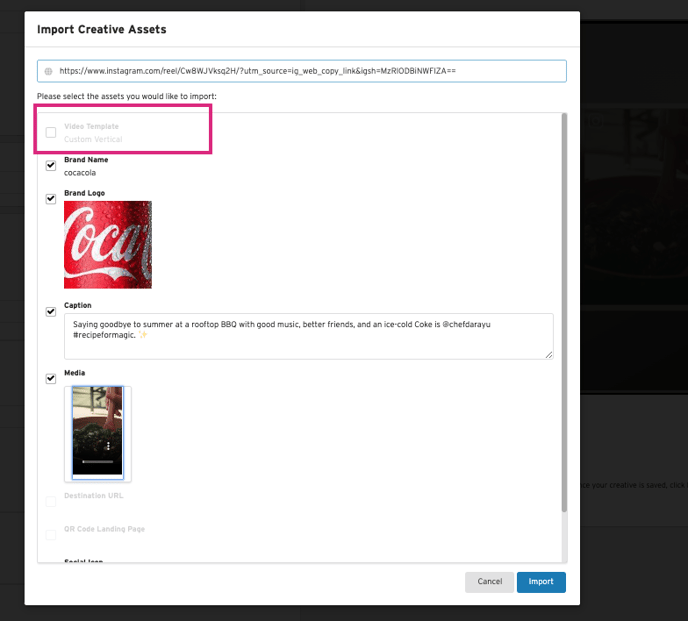
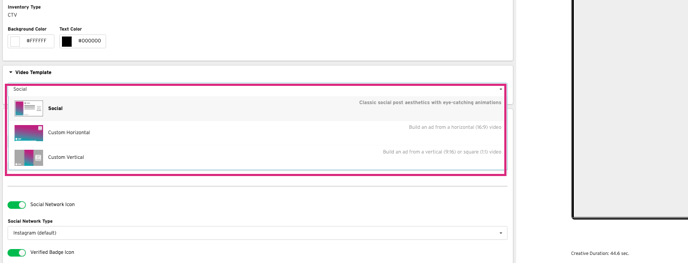
- Additionally if you desire to change the video template that gets selected by default once you import a url
- Deselect the default template that is automatically chosen when the social post is imported
- And then select the preferred template once the post is imported automatically.
- Add the **Creative Name** in **Creative Details.** *Optional:* Select **Background Colour** and **Text Colour** if desired.
-png.png)
- ### **Customized QR Codes for CTV**
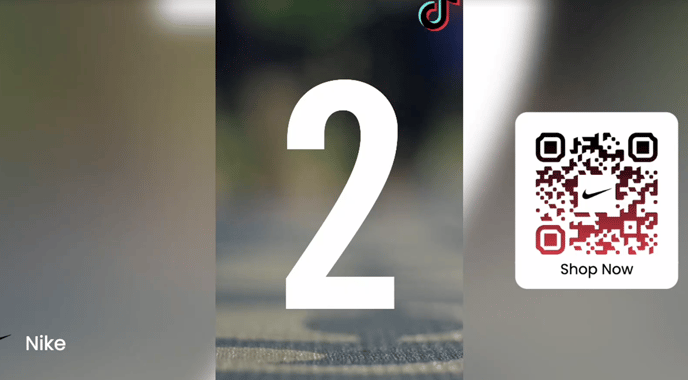
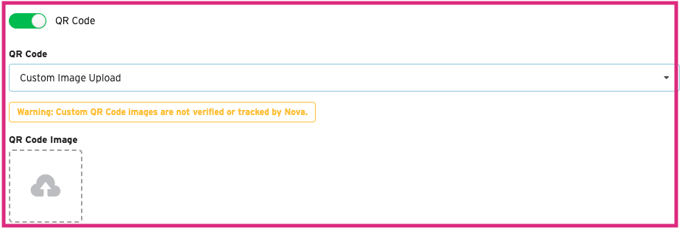
- To customize QR codes under any CTV creative, navigate to the QR Code section of the creative.
- The default is “standard”, click the dropdown box and select **Custom Image Upload**
- Drag and drop the custom QR code onto the QR Code Image upload (or just click it and select the image to upload)
- There are no specific minimum height/width requirements; standard QR codes should suffice.
- Support (PNG/JPG) image formats.
- Tracking is not enabled on customized QR code uploads.
- View the **Preview** section to see how the video will look, in real-time.
-png.png)
For Best Practices, keep the caption/CTA short so the viewer is able to read them. Also, remove any hashtags from the caption as they don't really fit in the CTV environment.
- Hit the **Save** button to save the creative.
-png.png)
- Click on **Render** button to generate the VAST tag. This may take up to 30 minutes.
-png.png)
- If rendering is not yet complete, you will see a warning message. Wait a few more minutes and try again.
-png.png)
- Select **Review Render** to **Approve** or **Reject** the creative.
-png.png)
- Clicking ***Approve***will lock the creative and it can no longer be edited. It will then allow you to export your **VAST Tag**.
-png.png)
Once you ***Approve*** the rendered creative, you will no longer be allowed to change it. If you need to make changes to an approved creative, ***Duplicate*** the creative, make your changes, then ***Render***the duplicated creative.
14. If you’re not satisfied, ***Reject***the creative and resubmit another render once you’ve made changes. Rejecting the render returns the creative to the editing stage .
-png.png)
Learn about Trafficking the VAST Tags in your Ad Server/DSP [here](https://createwithnova.wiki/trafficking-a-ctv/olv-creative-and-accessing-vast-urls)
If you've any further questions or facing any difficulty in creating a CTV/OLV creative via Social Import, send us your request to [support@createwithnova.com](mailto:support@createwithnova.com)
- [User Management](https://help.novastudio.ai/user-management?hsLang=en)
- [High-impact Display](https://help.novastudio.ai/high-impact-display?hsLang=en#main-content)
- [Setup & Basics](https://help.novastudio.ai/high-impact-display?hsLang=en#setup-basics)
- [Create Ad](https://help.novastudio.ai/high-impact-display?hsLang=en#create-ad)
- [Ad Formats & Capabilities](https://help.novastudio.ai/high-impact-display?hsLang=en#ad-formats-capabilities)
- [Features](https://help.novastudio.ai/high-impact-display?hsLang=en#features)
- [Import & Download](https://help.novastudio.ai/high-impact-display?hsLang=en#import-download)
- [Troubleshoot](https://help.novastudio.ai/high-impact-display?hsLang=en#troubleshoot)
- [VAST Video](https://help.novastudio.ai/vast-video?hsLang=en#main-content)
- [Setup & Basics](https://help.novastudio.ai/vast-video?hsLang=en#setup-basics)
- [Ad Formats](https://help.novastudio.ai/vast-video?hsLang=en#ad-formats)
- [Features](https://help.novastudio.ai/vast-video?hsLang=en#features)
- [Activation](https://help.novastudio.ai/vast-video?hsLang=en#activation)
- [Trackers](https://help.novastudio.ai/trackers?hsLang=en#main-content)
- [Add & Manage](https://help.novastudio.ai/trackers?hsLang=en#add-manage)
- [Guidelines](https://help.novastudio.ai/trackers?hsLang=en#guidelines)
- [Reporting](https://help.novastudio.ai/reporting?hsLang=en#main-content)
- [Access & Export](https://help.novastudio.ai/reporting?hsLang=en#access-export)
- [Metrics & Discrepancies](https://help.novastudio.ai/reporting?hsLang=en#metrics-discrepancies)
- [Trafficking Guidelines](https://help.novastudio.ai/trafficking-guidelines?hsLang=en)
- [Best Practices](https://help.novastudio.ai/best-practices?hsLang=en)
- [Native Ads](https://help.novastudio.ai/native-ads?hsLang=en)
- [Case Studies](https://help.novastudio.ai/case-studies?hsLang=en)
[](http://www.novastudio.ai?hsLang=en)
[support@novastudio.ai](mailto:support@createwithnova.com)
```
```
Copyright © 2026, Nova
```json
{
"@context" : "https://schema.org",
"@type" : "VideoObject",
"contentUrl" : "https://4934439.fs1.hubspotusercontent-na1.net/hubfs/4934439/CTV%20OLV%20social%20import%20V2%20FINAL.mp4",
"dateModified" : "2023-07-10T14:42:42.981Z",
"duration" : "PT2M27S",
"height" : 720,
"name" : "CTV OLV social import V2 FINAL",
"thumbnailUrl" : "https://4934439.fs1.hubspotusercontent-na1.net/hubfs/4934439/CTV%20OLV%20social%20import%20V2%20FINAL.mp4/medium.jpg",
"uploadDate" : "2023-07-10T14:42:35.800Z",
"width" : 1280
}
```