
Ways to Create a CTV or OLV Ad
In Nova Studio, there are two methods to create a CTV or OLV ad:
- Auto-Fill Import: Automatically turns a social post into an ad using the post's URL. (Learn how to create a CTV or OLV ad via Auto-Fill Import.)
- Manual Upload: Manually add creative assets to create an ad from scratch. (Learn how to create a CTV or OLV ad via Manual Upload.)
How Nova Studio CTV and OLV Ads Work
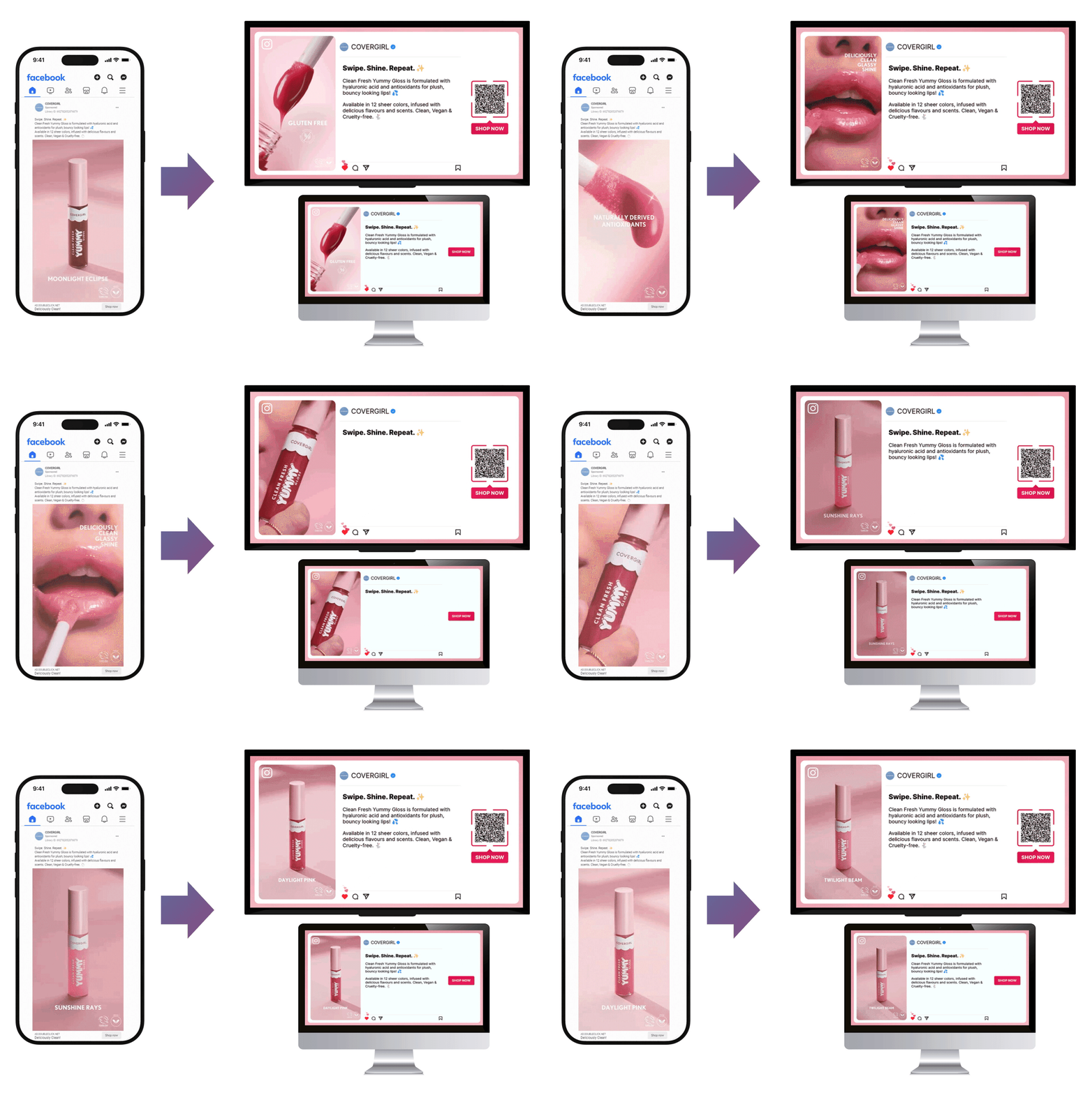
Nova Studio CTV and OLV ads are delivered as VAST tags, the industry standard for video ad delivery and measurement. VAST tags are compatible with all major DSPs and ad servers, making it easy to traffic your ads across any platform.
Nova Studio supports all major VAST versions:
- v2.0 (2012)
- v3.0 (2012)
- v4.0 (2016)
- v4.1 (2018)
- v4.2 (2019)
💡 CTV and OLV use separate VAST tags. A single VAST tag works across all VAST-compatible platforms and DSPs.
Available Formats
Choose the format that best matches your campaign goal. The following formats are available in Nova Studio's self-serve platform.
|
Format |
Description |
Best for |
|
Social/Influencer |
Extend vertical video and creator content to the big screen |
Beauty, Retail, Restaurants, Entertainment |
|
Retail |
Transform your product assets and social content into engaging ads that drive purchase intent |
Retail, Beauty, Ecommerce and Technology |
|
Showcase |
Combine vertical video, background image, and showcase image to highlight products or offers |
Auto, Finance, Health, Travel, Retail, Sports, CPG |
|
Streaming Carousel |
Multi-frame storytelling to showcase multiple products with a clear CTA |
Retail, Travel, Ecommerce, Beauty |
|
Standard Horizontal |
Full-screen video experience with brand logo and QR code |
Auto, Finance, Tech, Retail |
|
Standard Vertical |
Vertical video with customizable background panels |
Beauty, Retail, Entertainment, CPG |
💡For more information on each specific format, visit the main VAST Video page here.
Key Features
Nova Studio includes built-in features to help you customize and enhance your CTV and OLV ads.
|
Features |
Description |
Supported ad |
|
QR Codes |
Add a customizable QR code with a CTA. Supports scan-to-website, scan-to-call, scan-to-navigate, and save-to-wallet |
CTV |
|
Flowcode |
Connect your Flowcode account to bring branded QR experiences to your CTV ads. |
CTV |
|
CTA button |
Add a customizable click-through button with custom text and color |
OLV |
|
End Cards |
Add an optional end card to extend the duration of your video and provide a closing message or CTA |
CTV/OLV |
|
Background Audio |
Upload a custom audio track or choose from a royalty-free library. |
CTV/OLV |
|
Video Trimming |
Trim your source video to a specific start and end time to control the playback length |
CTV/OLV |
|
Co-branded Profile |
Upload a secondary logo to display animated co-branding alongside your primary brand logo |
CTV/OLV |
|
Real-time Preview |
Preview your ad in real time before rendering and share a preview link with stakeholders for approval |
CTV/OLV |
💡Learn more about in-stream video creative specs.
Brand Safety and Verification
Nova Studio VAST tags are standard VAST tags and are compatible with third-party brand safety and verification vendors. Wrapping must be done outside of Nova Studio after exporting your VAST tag.
Supported vendors:
- DoubleVerify (Video OmniTag)
- IAS
- MOAT
How to apply: Wrapping should be done either in your DSP or directly with your verification vendor. Each vendor has their own process for wrapping VAST tags.
⚠️If your verification vendor uses VPAID extensions for tracking or analytics, compatibility may vary depending on your inventory type. Check with your vendor before trafficking.
Have any questions about CTV/OLV features? Send us your request to support@createwithnova.com